Focus from your menu bar.
Start a session in one click, keep a mini timer over your work, and see where your time really goes.
On your phone? Follow our mobile PWA guide · See desktop downloads
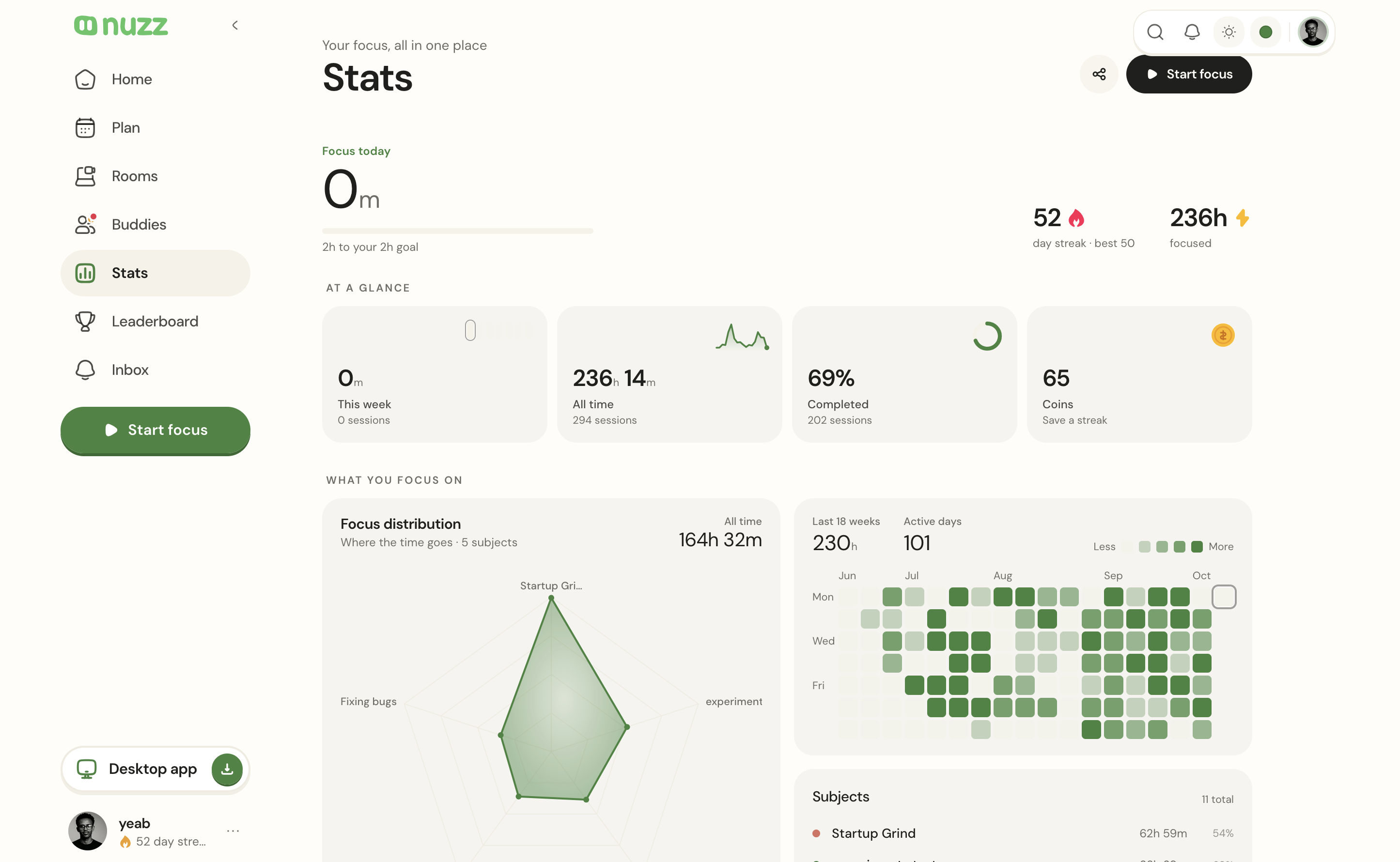
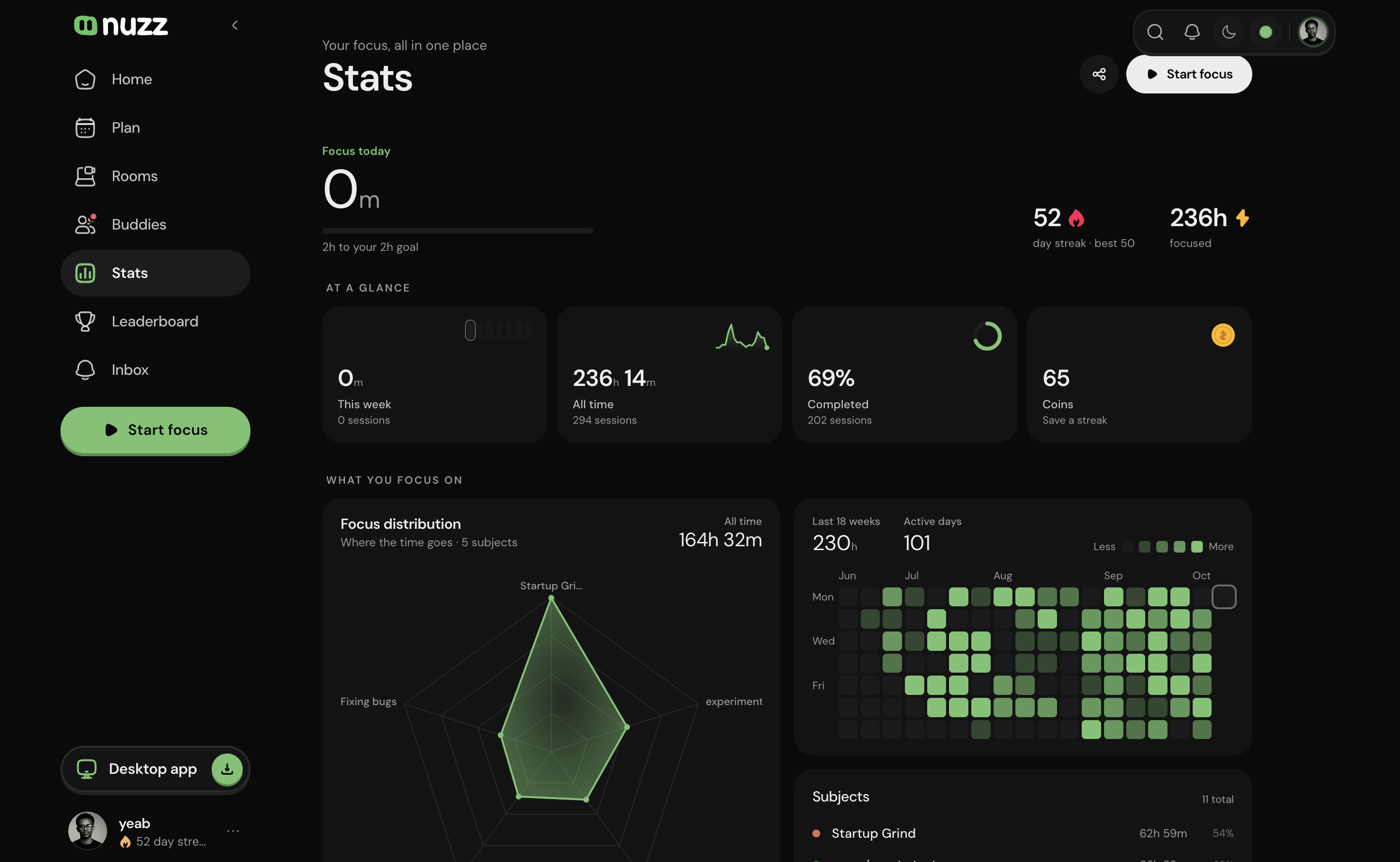
- 1
Timer in your menu bar
The countdown sits next to the clock. Click it to start, pause or end.
- 2
Your session at a glance
Time left, your streak and which apps you used, without opening a window.
- 3
A mini timer over any window
A small pill that floats over your work and stays out of the way.
How to install
Installing on macOS
Nuzz isn’t on the Mac App Store yet, so macOS asks you to approve it the first time. It takes about a minute.
- 1
Open the download
Double-click the Nuzz-v1.0.0-mac disk image (.dmg) in your Downloads folder. A window opens with Nuzz and your Applications folder.
- 2
Drag Nuzz into Applications
Drag the Nuzz icon onto the Applications folder. When the copy finishes you can close the window and eject the disk.
- 3
Open Nuzz — then press Done
Open Nuzz from Applications or Launchpad. The first time, macOS stops it with “Nuzz” Not Opened because it isn’t from the App Store. Click Done — not Move to Trash.
- 4
Allow it in Privacy & Security
Open System Settings → Privacy & Security and scroll down to Security. You’ll see “Nuzz” was blocked — click Open Anyway.
- 5
Confirm with Touch ID or your password
Click Open Anyway once more and confirm with Touch ID or your Mac password. You only do this once — from now on Nuzz opens like any other app.
- 6
Find Nuzz in your menu bar
Nuzz opens with a short welcome tour and sits in your menu bar. Click the icon to start a session, and sign in with your Nuzz account to bring your streak along.
- 7
Optional: let Nuzz see which site you're on
If you turn on website tracking, macOS asks once per browser. Click Allow so YouTube, Figma and others show up as their own apps — only the site name is kept.

Installing on Windows
Works on Windows 10 and 11 (64-bit). Windows double-checks new apps the first time, so there are two quick confirmations.
- 1
Keep the download
If your browser says Nuzz-v1.0.0-win-x64.exe isn’t commonly downloaded, choose Keep. Every new app gets this warning until enough people have installed it.
- 2
Open the installer — click More info
Open the file from your Downloads. Windows shows Windows protected your PC because the installer isn’t signed yet. Click More info.
- 3
Click Run anyway
Check that the app is Nuzz-v1.0.0-win-x64.exe, then click Run anyway. You only need to do this once.
- 4
Nuzz installs itself
No wizard and no admin password — Nuzz installs just for your Windows account in a few seconds, adds itself to the Start menu and your desktop, and opens with a short welcome tour.
- 5
Find Nuzz in the system tray
Nuzz lives in the tray next to the clock — click the ^ arrow if you don’t see it, and drag it onto the taskbar to keep it in view. Click it to start a session, and sign in with your Nuzz account.

Installing on Linux
64-bit (x64) builds for Ubuntu 20.04, Debian 11, Fedora 36 and newer — and most other distributions through the AppImage.
- 1
Pick the right file
.deb for Ubuntu, Debian, Linux Mint, Pop!_OS and elementary. AppImage for Fedora, Arch, openSUSE and anything else — it runs without installing.
- 2
Ubuntu / Debian: install the .deb
Open a terminal in your Downloads folder and run
sudo apt install ./Nuzz-v1.0.0-linux-amd64.deb. Double-clicking the file and choosing Install in App Center works too. - 3
AppImage: allow it to run
Right-click the AppImage → Properties and turn on Executable as Program — or run
chmod +x Nuzz-v1.0.0-linux-x86_64.AppImage. On Ubuntu 22.04 and newer, AppImages also needsudo apt install libfuse2(libfuse2t64on 24.04). - 4
Open Nuzz
Search for Nuzz in your app launcher (installed from the .deb), or double-click the AppImage. A short welcome tour opens — sign in with your Nuzz account to bring your streak along.
- 5
Find Nuzz in the top bar
Nuzz sits in the system tray with a menu for the panel and your session. Ubuntu shows tray icons out of the box; on other GNOME desktops add the AppIndicator and KStatusNotifierItem Support extension.
- 6
On Wayland: let Nuzz see every app
On X11 app tracking just works. On Wayland, Settings → App tracking tells you what’s missing: the Window Calls extension on GNOME, or kdotool on KDE Plasma. Nuzz picks it up within a minute.
sudo apt remove nuzz (or just delete the AppImage). Stuck? Write to [email protected].What you get
Menu bar timer
Start, pause and check a session from the menu bar or tray — without opening a window.
Floating mini timer
A small countdown that stays on top while you work in other apps.
See where focus goes
Which apps and sites you used during a session — app names only, never what's on screen.
Gentle nudges
Streak, goal and drift check-ins from the mascot, right on your desktop.
All downloads
Version 1.0.5 · Included with Nuzz Pro
macOS
macOS 12 Monterey or later
- Pro required
Apple silicon
Disk image · Nuzz-1.0.5-arm64.dmg
- Pro required
Intel
Disk image · Nuzz-1.0.5-x64.dmg
Windows
Windows 10 or 11, 64-bit
- Pro required
64-bit
Installer · Nuzz-1.0.5-x64.exe
Linux
Ubuntu 20.04, Debian 11, Fedora 36 or later · x64
- Pro required
64-bit
AppImage · Nuzz-1.0.5-x86_64.AppImage
- Pro required
64-bit
Debian / Ubuntu · Nuzz-1.0.5-amd64.deb
Private by design
During a session Nuzz notes which app is in front, and optionally which known site (like YouTube or Figma). It never reads window titles, screen contents or keystrokes, and you choose whether apps appear on your posts. Privacy policy